2026-10-01 · Guide · 7 min read · Kouakou Ghislain Boris
Guide: make a React store operable by an agent, step by step
In this guide we start from a small React store (a product list, a product page, a cart and a checkout page) and make it operable by an agent, typed or spoken. By the end, the user can say "show me the headsets, add the cheapest one to my cart and place the order", and the agent does it, asking for the user's consent at payment time.
We write no CSS selector and no simulated click. Every action goes through code you control.
What we will build
| Step | OwlLayer building block | Role |
|---|---|---|
| 1 | OwlLayerServer | The server that talks to the model |
| 2 | OwlLayerProvider | The app's connection to the server, with the widget |
| 3 | useAgentContext | What the agent knows about the screen (Shadow Context) |
| 4 | useAgentTool | A local action on the product page |
| 5 | useAgentToolResolver | The cart actions, grouped |
| 6 | useNavigationTool | Navigation between pages |
| 7 | risk: 'critical' | The payment, gated by approval |
Prerequisites: Node.js 18 or later, pnpm 9, a Gemini API key (or OpenAI, or Anthropic), and a React app with react-router-dom.
Step 1: the server
pnpm add @owllayer/server @owllayer/core @owllayer/adapter-google dotenv// server.tsimport 'dotenv/config';import { OwlLayerServer } from '@owllayer/server';import { GoogleAdapter, GoogleLiveAdapter } from '@owllayer/adapter-google'; const LANGUAGE = 'en';const SYSTEM_PROMPT = 'You are the shopping assistant of this store. Use the tools to act for the user. ' + 'Never claim an action is done before its tool result confirms it.'; const server = new OwlLayerServer({ // Text model: answers and picks the tools llm: new GoogleAdapter({ model: 'gemini-2.0-flash', apiKey: process.env.GOOGLE_API_KEY!, systemPrompt: SYSTEM_PROMPT, language: LANGUAGE, }), // Real-time voice: listens, speaks and calls the same tools live: new GoogleLiveAdapter({ apiKey: process.env.GOOGLE_API_KEY!, model: 'gemini-2.5-flash-native-audio-preview-12-2025', voice: 'Fenrir', systemPrompt: SYSTEM_PROMPT, }), port: 3000, path: '/owllayer', language: LANGUAGE, // Maximum time for a client tool to answer (30 s by default) toolTimeout: 15_000, // Messages kept in the conversation of each session maxConversationMessages: 50, // Maximum active tools per session (30 by default) maxActiveTools: 30, // Adds risk-level guidance for the tools to the prompt toolGuidance: true, // Embedded dashboard: http://localhost:3000/owllayer-ui ui: { enabled: true, language: LANGUAGE }, // Only keys added with addApiKey can connect client: { requireApiKey: true },}); server.addApiKey('pk_dev_123');server.listen(() => console.log('OwlLayer on ws://localhost:3000/owllayer'));The server knows no tool in advance: the interface announces them, screen by screen. maxActiveTools caps their number; the value is sent to the browser on connection.
llm handles text and live handles real-time voice: both call the same tools, with the same approvals. For voice you can also use OpenAI Realtime (OpenAILiveAdapter) or Deepgram (@owllayer/adapter-deepgram: batch speech-to-text and text-to-speech, streaming, or the realtime Voice Agent). With OpenAIAdapter as the text model, its timeout option also bounds the model's response time.
Step 2: the provider and the widget
pnpm add @owllayer/react @owllayer/core zod// main.tsximport { OwlLayerProvider } from '@owllayer/react';import { BrowserRouter } from 'react-router-dom'; createRoot(document.getElementById('root')!).render( <BrowserRouter> <OwlLayerProvider apiKey="pk_dev_123" endpoint="ws://localhost:3000/owllayer" config={{ voice: true, hitl: { ui: 'modal' }, widget: { enabled: true }, }} > <App /> </OwlLayerProvider> </BrowserRouter>,);The widget adds a chat bubble for text and voice. hitl: { ui: 'modal' } shows approval requests in a modal dialog, isolated in a closed Shadow DOM.
Step 3: what the agent knows about the screen
The agent has no access to the DOM. It knows what you publish with useAgentContext:
// ProductPage.tsximport { useAgentContext } from '@owllayer/react'; function ProductPage({ product }: { product: Product }) { const cart = useCart(); useAgentContext({ page: 'product', product: { id: product.id, name: product.name, price: product.price, stock: product.stock }, cartCount: cart.count, }); // …}Pick few fields, and useful ones. Price and stock help the agent answer; the id lets it act. Never publish data the user should not see: this context goes to the model.
Step 4: a local action on the product page
// ProductPage.tsx (continued)import { useAgentTool } from '@owllayer/react';import { z } from 'zod'; useAgentTool( { name: 'add_to_cart', description: `Add "${product.name}" to the cart.`, schema: z.object({ quantity: z.number().int().min(1).max(10).default(1) }), risk: 'low', }, async ({ quantity }) => { if (product.stock < quantity) { return { added: false, reason: `Only ${product.stock} left in stock` }; } await cart.add(product.id, quantity); return { added: true, productId: product.id, quantity, cartCount: cart.count + quantity }; },);Three things to note:
- The tool exists only on the product page. When the user leaves the page, the component unmounts and the tool goes away. On the product list, the agent cannot add "the current product" to the cart, because there is none.
- The schema is checked before execution. If the model asks for
quantity: 0, it receives a validation error and fixes its call; your handler is not called. With.default(1), a call without a quantity arrives withquantity: 1. - The handler returns a useful result, even when the action does not happen. The model relies on that result to answer the user.
risk: 'low' runs the action and shows a notification: the user sees what the agent just did.
Step 5: the cart actions, grouped
The cart is reachable from every page. Its actions go in the layout, grouped by a resolver:
// Layout.tsximport { useAgentToolResolver } from '@owllayer/react';import { z } from 'zod'; function Layout({ children }: { children: ReactNode }) { const cart = useCart(); useAgentToolResolver( { cart: { prefix: 'cart_', tools: { view: { description: 'List the items in the cart with their quantities and the total.', schema: z.object({}), risk: 'none', handler: () => ({ items: cart.items, total: cart.total }), }, remove: { description: 'Remove one product from the cart.', schema: z.object({ productId: z.string() }), risk: 'high', handler: async ({ productId }) => { await cart.remove(productId); return { removed: productId, cartCount: cart.count - 1 }; }, }, }, }, }, { onErrorAnyCall: (name, _args, error) => console.error(`[agent] ${name} failed`, error), }, ); return <>{children}</>;}The resolver registers cart_view and cart_remove under one component and adds a shared error hook. cart_remove is high: removing an item needs the user's consent.
Step 6: navigation
Without navigation, the agent stays on the page where it was called. useNavigationTool gives it a global navigate tool wired to your router:
// Layout.tsx (continued)import { useNavigationTool } from '@owllayer/react';import { useNavigate } from 'react-router-dom'; const routerNavigate = useNavigate(); useNavigationTool(({ url }) => routerNavigate(url), { description: 'Navigate in the store. Routes: / (home), /products?q=<search> (product list), ' + '/products/<id> (product page), /cart, /checkout.',});List your routes in the description: that is how the model knows where to go. When navigate changes the page, OwlLayer waits until the new page has registered its tools before handing control back to the model. It can therefore chain "open the headset X page" and "add it to my cart" in a single request.
Step 7: the payment, gated by approval
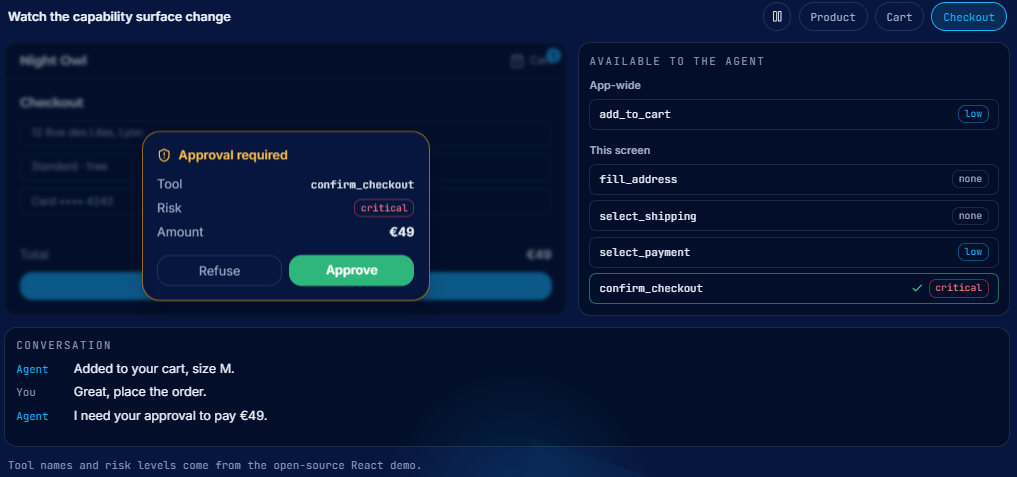
// CheckoutPage.tsxfunction CheckoutPage() { const cart = useCart(); useAgentContext({ page: 'checkout', total: cart.total, itemCount: cart.count }); useAgentTool( { name: 'confirm_order', description: 'Place the order and charge the saved payment method. Irreversible.', schema: z.object({}), risk: 'critical', }, async () => { const order = await api.placeOrder(cart.items); return { orderId: order.id, total: order.total, status: order.status }; }, ); // …}With risk: 'critical', the handler runs only after the user clicks in the approval dialog, which warns that the action is irreversible. If the user declines, the model receives the refusal and says so. The agent can prepare the order; only the human places it.
Try it
Start the server and the app, open the widget, then try:
- "Show me Bluetooth headsets." The agent navigates to
/products?q=headset. - "Open the cheapest one and add two." Navigation to the product page, then
add_to_cartwithquantity: 2, and a notification. - "What's in my cart?"
cart_view, no confirmation. - "Remove the headset."
cart_remove: the approval dialog opens. - "Place the order." Navigation to
/checkout, thenconfirm_orderwith the irreversible-action warning.
Before production
- Use one key per application, add it on the server with
addApiKeyand keepclient.requireApiKeyset totrue. The key is visible in the browser: it identifies the application, it does not protect a secret. - Review the risk levels. Anything that spends money, deletes data or sends a message on the user's behalf deserves
highorcritical. - Block on the server whatever must never be called, even if a client declares it, with
server.blockTool(name). - Keep few tools per screen. One parameterized tool (
add_to_cart({ productId })) beats fiftyadd_product_123tools. The active-tool limit is there to remind you. - Check your handlers: they must return a Promise that resolves once the action is really done.
Going further
- The OwlLayer AI concepts: Neural-DOM Binding, Tools, Shadow Context, HITL execution and AITP.
- The tools guide and the security and HITL page.
- The React e-commerce demo, which follows this guide with a real store.
- The same approach in Vue, Svelte, Angular and HTML.